A Spanish website chatbot lets you help Spanish speaking visitors even when every page on your site is in English. The visitor asks in Spanish, the chatbot finds the answer in your English content, and it replies in Spanish. These tips cover what to prepare, how to test, and how to make Spanish speaking visitors feel welcome from the first message.
Why Spanish speaking visitors matter
Spanish is one of the most widely spoken languages in the world, and many businesses in the United States and elsewhere have Spanish speaking customers already. Some read English well but prefer to ask questions in Spanish. Others read English slowly and may leave a page if they cannot find an answer fast.
You may not have the time or budget to translate your whole site. A chatbot that replies in Spanish covers the questions people actually ask, without a second version of every page to maintain.
How a Spanish website chatbot answers from English pages
Talkwyn detects the language of each message and replies in the same language. Your published content stays the source of truth:
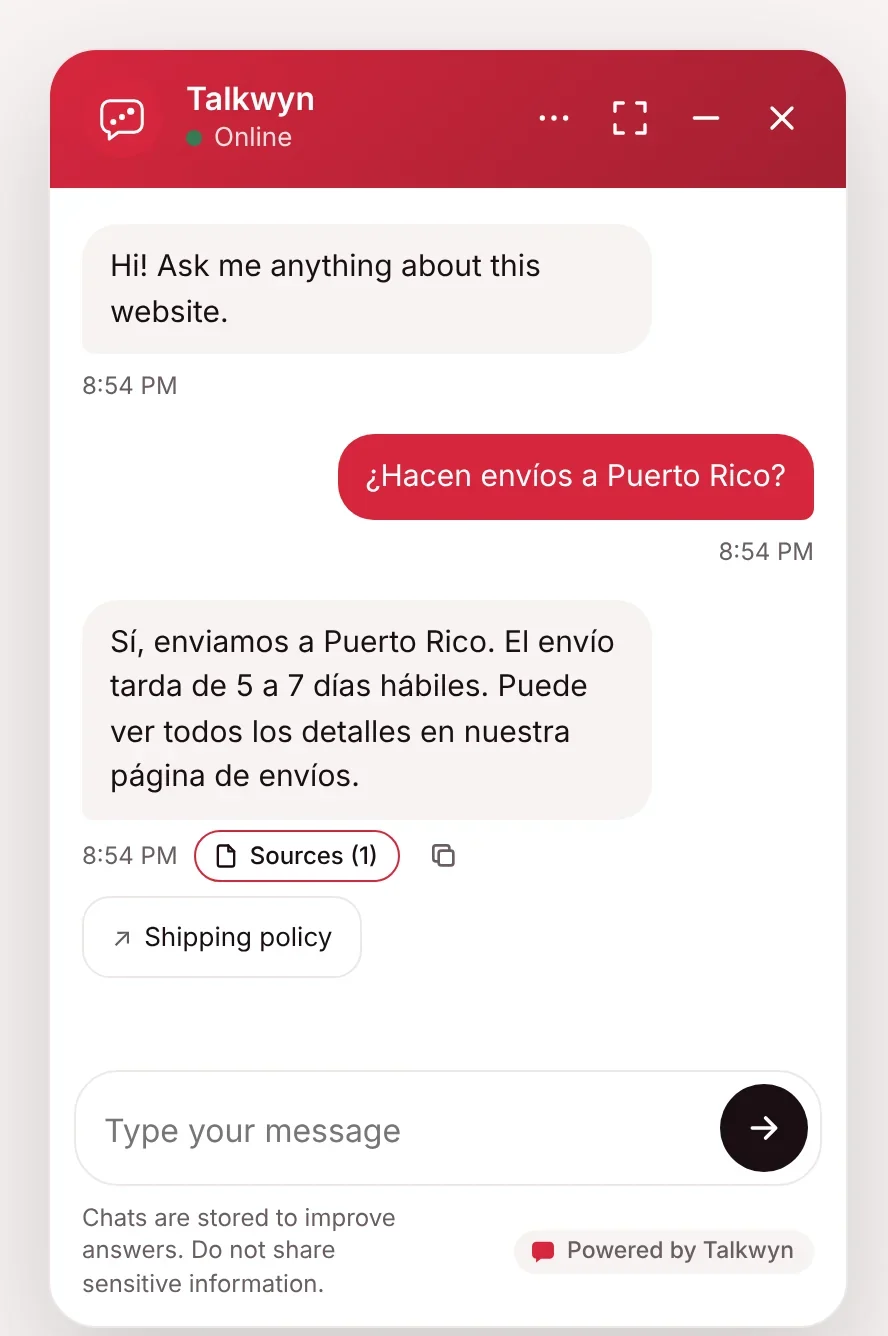
- A visitor writes: “¿Hacen envíos a Puerto Rico?”
- The chatbot detects Spanish and searches your English pages, such as the shipping page.
- It replies in Spanish with the answer from that page and a source link underneath.
- If the visitor switches to English, the chatbot switches too.
Names, prices, emails and product names stay exactly as written, so a visitor sees the same product name they will see in the cart. Mixed messages that switch between English and Spanish in one sentence are handled too, which is common for bilingual visitors.
See more examples on the Spanish chatbot page.
Prepare your English pages first
The chatbot can only be as clear as your source pages. A few changes make Spanish answers more accurate:
- Write short, plain sentences. Simple English is easier for the AI model to restate in clear Spanish. Avoid slang and idioms on key pages.
- Spell out the details. Give currency, time zone, delivery regions and hours in full. “Open 9 a.m. to 5 p.m. Eastern Time, Monday to Friday” is better than “open business hours”.
- Keep one answer per question. If the shipping page and the FAQ disagree, fix it before launch.
- Mention Spanish support if you have it. If someone on your team speaks Spanish, say so on your contact page, so the chatbot can tell visitors.
- Name places and products clearly. Product names stay as written, so make sure they make sense to a Spanish speaker too.
Our guide on writing pages your chatbot can answer covers page structure in more depth.
Write a welcome that invites Spanish
Many visitors assume an English site only answers in English. A short line in the welcome message tells them they can ask in Spanish. For example:
- “Hi! Ask me anything about our products. También puede escribir en español.”
- “Hello, how can I help? Puede preguntarme en español.”
Keep it to one line so English speaking visitors are not confused. If your site is translated with WPML or Polylang, the interface text, such as the welcome message and button labels, can be translated with those plugins too. More ideas are in our chatbot welcome message examples.
Test with real Spanish questions
Language quality depends on the AI model you choose, so test before you rely on it. If you do not speak Spanish, ask a bilingual team member, friend or customer to help.
- List the ten questions you hear most often.
- Ask a native speaker to type them in Spanish the way they would naturally say them, including informal wording.
- Check that each answer matches your English page, and that prices and names are unchanged.
- Try a follow-up, such as “¿y cuánto cuesta?”, to make sure the chatbot keeps the context.
- Try a mixed message that switches between English and Spanish.
- Fix any page that led to a weak answer, then test again.
The chatbot testing checklist has more test ideas you can run in both languages.
Formal and informal Spanish
Spanish has a formal “you” (usted) and an informal one (tú). Some businesses prefer a polite, formal tone, and others prefer a friendly, casual one. Decide which fits your brand, and ask your testers whether the replies feel right. If the tone feels off, keep your English pages warm and simple, and try a different AI model. Choose the tone of your bilingual welcome line to match.
Capture Spanish leads and follow up well
Talkwyn detects intent in many languages, so “¿puedo reservar?” or “llámenme” is recognized just like “can I book?” or “call me”. The chatbot asks before showing a short form inside the chat. The lead is saved in WordPress and emailed to you right away, along with the conversation.
Plan who will follow up. If nobody on your team speaks Spanish, a short, polite reply in simple English, or a carefully checked reply in Spanish, is still better than silence. If you do have a Spanish speaker, route those leads to them. See the lead generation features for how leads are stored and exported.
When to translate key pages too
A Spanish website chatbot covers questions, but it does not create Spanish pages for search engines. Consider translating a few key pages if:
- You want to be found in search for Spanish queries.
- Spanish speakers are a large part of your customers.
- You have legal, checkout or contract text that should be reviewed by a person in Spanish.
A common middle path is to translate the homepage and contact page, and let the chatbot handle detailed questions. The multilingual chatbot page and our multilingual website chatbot guide explain the tradeoffs. To get started, install the free WordPress chatbot plugin and follow the getting started guide. Multilingual answers are part of the free plan.
Spanish website chatbot FAQ
Do I need Spanish pages for the chatbot to answer in Spanish?
No. The chatbot reads your English pages and replies in Spanish when the visitor writes in Spanish.
Will it translate my prices and product names?
No. Names, prices, emails and product names stay exactly as written on your site.
What if a visitor mixes English and Spanish?
Mixed messages are handled. The chatbot detects the language of each message and switches when the visitor switches.
How good is the Spanish?
It depends on the AI model you choose. Test common questions with a native speaker before launch, and consider a paid model if quality matters a lot.
Can I translate the welcome message?
Yes. Write a bilingual welcome line, or translate interface text with WPML or Polylang if your site uses them.
How do I try this on my own site?
Install the free plan, or start a 15-day Pro trial, and test it with the questions your customers really ask. Install Talkwyn.
How long does setup take?
About five minutes. Install Talkwyn, paste a free AI key, click Scan my site, pick your color, avatar and welcome message, and turn it on. The setup guide walks through each step.
How does the free trial work?
You get every Pro feature for 15 days on one site. No credit card needed. When the trial ends, upgrade with the same key or keep the free plan. Start the trial.
What happens when the answer is not on my site?
Talkwyn says it could not find that and offers to have your team follow up. It answers business questions only from your own content, so it never invents a price or a policy.
Where are chats and leads stored?
In your own website database. Messages go only to the AI provider you picked, and you can turn chat logs off or have them deleted after a number of days you choose. Read our privacy approach.