You can add a chatbot for website visitors free of monthly fees, and it takes about five minutes on WordPress. This guide walks you through every step with Talkwyn, a free WordPress chatbot plugin: install it, scan your site, add a free AI key, make it look like your brand, test it with real questions, and start collecting leads.
Why add a chatbot to your website?
Most visitors leave with a question nobody answered. They want to know your opening hours, whether you deliver to their area, or how much a service costs. If the answer is not easy to find, they go back to the search results and pick someone else.
A good AI chatbot answers those questions on the spot, using the content you already published. It works at night and on weekends, and it can reply in the visitor’s own language. When someone is ready to buy or book, it offers to pass their details to your team.
- Answers from your own pages, with links to the source.
- Replies in the language each visitor writes in.
- Turns serious questions into leads you can follow up.
- Admits when it does not know, instead of guessing.
What you need before you start
- A WordPress website where you can log in as an administrator.
- Published content that answers common questions: services, prices, hours, shipping, contact details. The chatbot can only answer from what is on your site.
- A free AI key from Groq, Google Gemini, OpenRouter, or Cloudflare. You will create one in step 2.
- About five minutes.
You do not need to write code, train a model, or upload documents by hand.
How to create a chatbot for your website that actually helps
The quality of your chatbot depends on the quality of your pages. Spend ten minutes on these before you install anything, and your first answers will be much better. Want to compare first? Read WordPress chatbot plugins compared.
- Write down the questions you hear most. Look at your inbox, your phone notes, and your contact form. Most businesses get the same ten to twenty questions again and again.
- Make sure each one has an answer on a published page. A short FAQ page is often the quickest fix.
- Put prices, hours, and policies in plain text. Clear sentences are easier to find and quote than details hidden in an image.
- Keep one source of truth. If your delivery fee appears on three pages with three different numbers, fix that first.
- Add your contact details and service area so the chatbot can point people to the right place.
Step 1: Install the free WordPress chatbot plugin
- Download the free ZIP from the Talkwyn download page.
- In your WordPress dashboard, go to Plugins, click Add New, then Upload Plugin, and choose the ZIP.
- Click Install Now, then Activate.
The Talkwyn setup wizard opens. It asks for an AI key first, then scans your site.

Step 2: Add a free AI key
Talkwyn sends each question to an AI provider you choose. Several providers have free tiers. Our guide to free AI API keys, including how to get a Groq API key, shows each step.
- Create a key with Groq, Google Gemini, OpenRouter, or Cloudflare.
- In the setup wizard, pick the provider, paste the key and click Test.
- Add a second provider if you can. Talkwyn switches automatically when one hits its limit.
Step 3: Scan your site
Next, the wizard asks you to click Scan my site. Talkwyn reads your published pages, posts, menus, custom fields, and Elementor content. If you run WooCommerce, it also reads your products, including price, stock status, and attributes.
It never reads drafts, users, or passwords. After the first scan, Talkwyn keeps its index up to date when you edit or publish content, so you do not have to scan again every time you change a price.

Step 4: Make it look like your brand
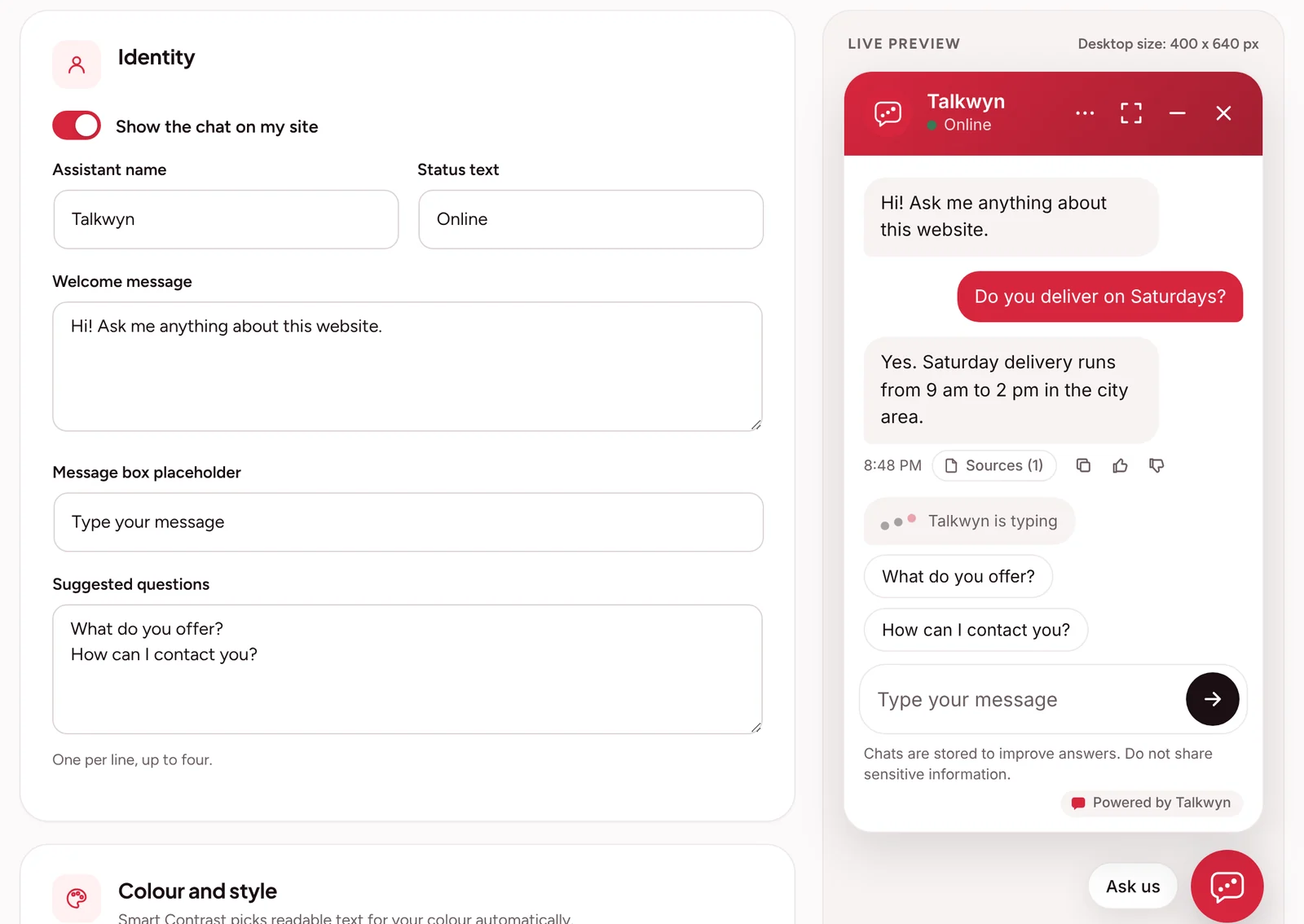
Pick a color that matches your site, choose an avatar, and write a short welcome message. Keep the welcome message specific. “Hi! Ask me about our prices, opening hours, or delivery areas” works better than “How can I help?” because it shows visitors what the chatbot knows.
You can also hide the chatbot on pages where it would get in the way, like checkout or thank-you pages. When everything looks right, turn it on.
Step 5: Test your free chatbot for website visitors with 10 real questions
Open your site in a private browser window and ask the questions real customers ask. Here are 10 to start with. Swap in your own details.
- What are your opening hours?
- How much does [your main service or product] cost?
- Do you deliver to [a nearby town]?
- What is your return or cancellation policy?
- Is [a product] in stock in a large size?
- And how much is that one? (a follow-up, to check it remembers the last question)
- Where are you located, and is there parking?
- Can I book an appointment for tomorrow?
- Do you offer something you do not offer? (it should say it does not know and offer to have your team follow up)
- The same opening hours question in another language your customers use, such as Spanish or Arabic.
For each answer, check three things: is it correct, is there a source link under it, and does it point to the right page? If an answer is wrong or missing, the fix is almost always on your site. Add or update the page that should answer it, and Talkwyn picks up the change.
Talkwyn detects the language of each message and replies in the same language, including Spanish, French, Arabic and messages that mix languages. See how it works on the multilingual chatbot page.
Step 6: Turn on lead capture
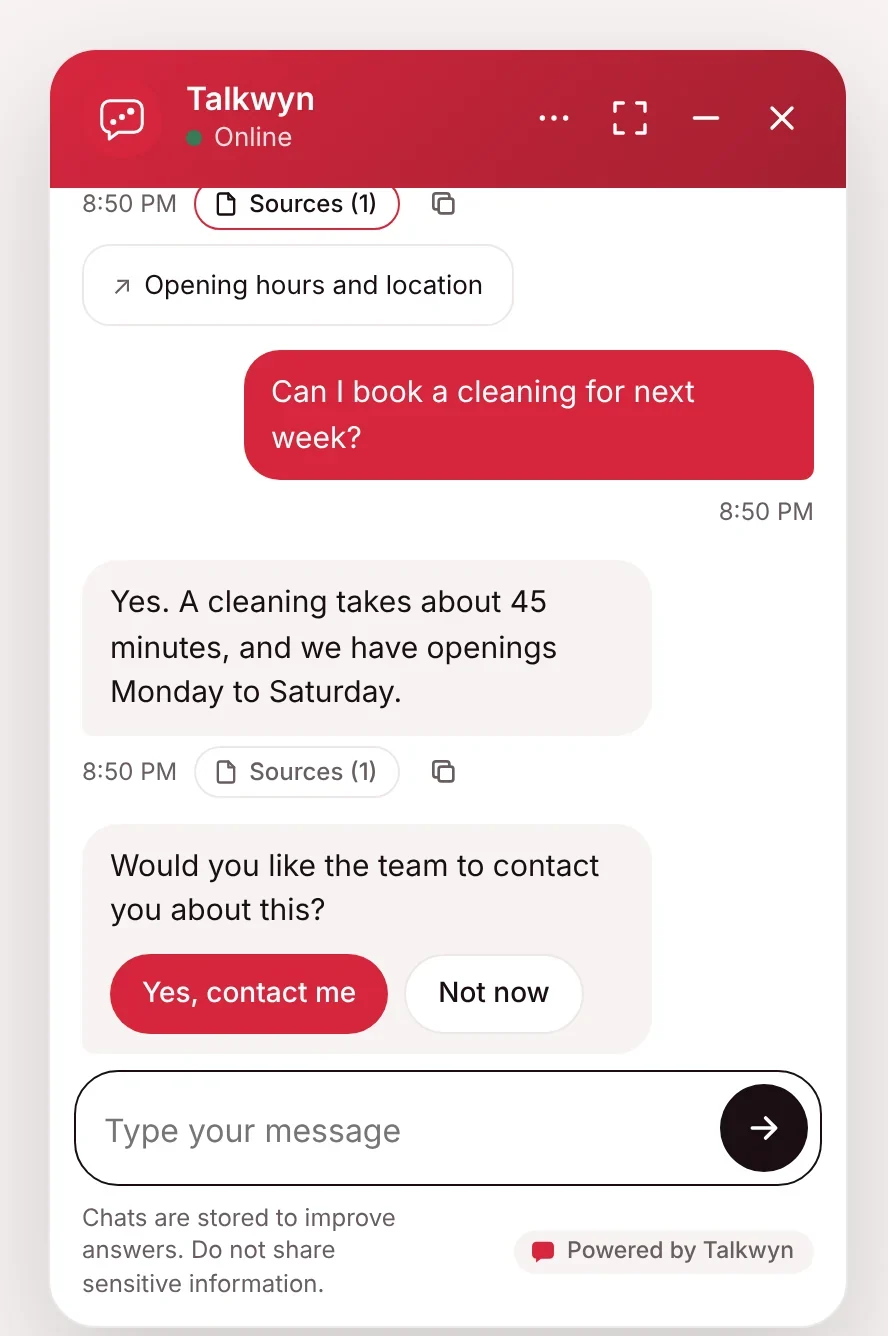
Lead capture is part of the free plan. When a visitor shows buying intent, like “can I book?”, “what’s the price?”, or “call me”, Talkwyn asks if they would like a follow-up from your team. If they say yes, a short form opens inside the chat.
- Make sure lead capture is turned on in Talkwyn’s settings.
- Check the email address where new leads are sent.
- Send a test lead yourself and confirm the email arrives.
Every lead is saved in your WordPress site and emailed to you instantly, and you can export leads as CSV. Learn more about lead generation with Talkwyn.
Common mistakes to avoid
- Thin content. If your prices or policies are not on your site, the chatbot cannot answer them. It will not invent them.
- Only one AI key. A single free tier can run out on a busy day. Add a second provider.
- A vague welcome message. Tell visitors what they can ask.
- Skipping the test. Ten questions take ten minutes and catch most gaps.
- Forgetting other languages. If your customers write in Arabic, French, or Spanish, test in those languages. Quality depends on the AI model you chose.
- Showing it everywhere. Hide it on checkout and thank-you pages so it does not distract buyers.
- Not checking the lead email. A lead that lands in spam is a lead lost.
After launch: the first two weeks
A chatbot gets better as your content gets better. Set aside a few minutes each week for the first couple of weeks.
- Read through your chat history and note any question the chatbot could not answer.
- Add or update the page that should answer it. Talkwyn keeps its index up to date when you edit.
- Look at your leads. Did each one get a reply from your team the same day?
- Check that your AI providers are still working, and add a second one if you have not yet.
- Ask a few questions yourself again, in each language your customers use.
After that, a quick monthly check is usually enough. Visitors will tell you, through their questions, what your website is missing.
Free plan or Pro?
The free plan includes the site scan, multilingual answers, lead capture, chat history, and free AI providers. Pro adds paid AI models (OpenAI, Anthropic Claude, Mistral, and DeepSeek), smart search (meaning-based search), PDF and web page knowledge, analytics and an unanswered questions inbox, WooCommerce product cards and order lookup, Slack and Telegram lead alerts, proactive messages, and business hours. You can try every Pro feature for 15 days. No credit card needed.
Free WordPress chatbot plugin FAQ
Is there really a free chatbot for my website?
Yes. Talkwyn’s free plan is free forever and works with free AI keys from providers like Groq and Google Gemini. Those providers set their own free limits.
How do I create a chatbot for my website without coding?
Install a WordPress chatbot plugin like Talkwyn, paste a free AI key, click Scan my site, and turn it on. No code is needed.
Will the chatbot make up answers?
Talkwyn answers business questions only from your own content and shows source links. If the answer is not on your site, it says so plainly instead of guessing. When the visitor shows interest, it offers to have your team get in touch.
Does it work with WooCommerce and Elementor?
Yes. It reads WooCommerce products, including price, stock status, and attributes, and it reads Elementor page content.
Will it slow down my site?
The chat script is small, loads after your page, and talks to your server only when someone sends a message.
Where are chats and leads stored?
In your own WordPress database. Messages go only to the AI provider you picked.
How do I try this on my own site?
Install the free plan, or start a 15-day Pro trial, and test it with the questions your customers really ask. Install Talkwyn.
How long does setup take?
About five minutes. Install Talkwyn, paste a free AI key, click Scan my site, pick your color, avatar and welcome message, and turn it on. The setup guide walks through each step.
How does the free trial work?
You get every Pro feature for 15 days on one site. No credit card needed. When the trial ends, upgrade with the same key or keep the free plan. Start the trial.
Do I need to pay for AI?
Not to get started. Groq, Google Gemini, OpenRouter and Cloudflare Workers AI offer free tiers. Add more than one and Talkwyn switches automatically when one hits its limit. Pro adds OpenAI, Anthropic Claude, Mistral and DeepSeek. Choose an AI provider.