The chatbot vs contact form question comes up for almost every small business site. Both let visitors reach you, but they solve different problems. A form collects a message for later. A chatbot answers questions right now. This guide helps you decide which one your site needs, and when the honest answer is both.
What each tool is really for
A contact form is a mailbox. The visitor writes a message, clicks send, and waits for a reply. It works well when the visitor already knows what they want to say and is happy to wait.
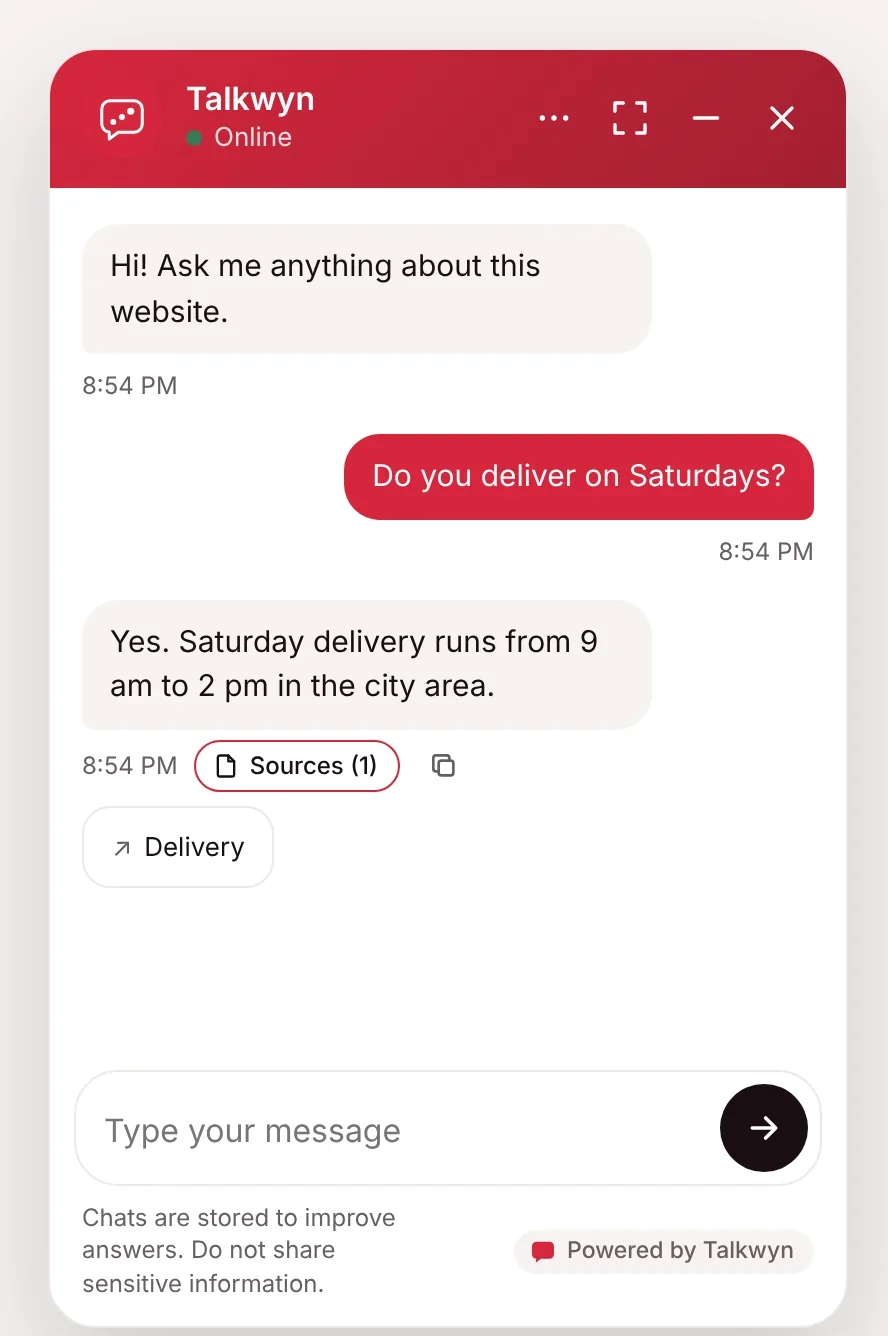
A website chatbot is closer to a helpful person at the front desk. The visitor asks a question and gets an answer in seconds, drawn from your own pages. If the question needs a human, the chatbot can collect their details and pass them on.
So the real question is not which one is better. It is what your visitors need at the moment they reach out.
Think about the last twenty messages that came through your form. How many asked something your website already explains? How many needed a real conversation with someone on your team? That split is a good first clue for the chatbot vs contact form decision on your own site.
When a chatbot beats a contact form
A chatbot tends to help more in these situations:
- The question already has an answer on your site. Opening hours, prices, delivery areas, and return rules are faster to answer than to email about. The visitor gets the answer, and your inbox stays quiet.
- The visitor is deciding right now. Someone comparing you with another business may not wait a day for a reply. A quick answer can keep them on your page.
- Visitors write in different languages. A multilingual chatbot replies in the visitor’s own language. A form gives you a message you may need to translate before you can reply.
- Questions come in outside office hours. A chatbot answers at night and on weekends from your published content.
- The visitor is not sure what to ask. A chat lets people ask follow-up questions, like “and how much is that?”, until they find what they need.
When a contact form is the better choice
A chatbot is not the right tool for everything. A plain form often works better when:
- You need structured details. Quote requests with measurements, file uploads, or many required fields are easier in a well designed form.
- The request is long or personal. Job applications, complaints, and detailed project briefs suit a form where the visitor can take their time.
- Your site has very little content. A chatbot answers from your pages. If those pages are thin, a form plus a fast human reply may serve visitors better until you add more content.
- Every question needs a person. If nothing can be answered without looking at a specific account or case, a chatbot adds a step instead of removing one.
Chatbot vs contact form side by side
| Website chatbot | Contact form | |
|---|---|---|
| Best for | Quick questions with answers on your site | Detailed requests that need a person |
| Visitor waits | No, for questions your pages cover | Yes, until someone replies |
| Works after hours | Answers from published content | Collects messages for the next day |
| Other languages | Replies in the visitor’s language | You may need to translate |
| Structured fields and uploads | Short lead form only | Yes, as many as you need |
| Setup effort | Install, scan your site, add an AI key | Build and style the form |
Neither column is always better. The right mix depends on what your visitors ask and how your team works.
What about response time on your side?
A form only works as well as your follow-up. If messages sit in an inbox for days, visitors notice. A chatbot does not fix slow follow-up on leads, but it does remove the wait for simple questions, which leaves your team more time for the requests that need them. Whichever you choose, decide who checks new messages and how often.
How to use both together
Most small business sites end up with both, and that is fine. Here is a simple setup that avoids overlap:
- Keep your contact page with its form for detailed requests.
- Add a chatbot to the rest of your site to answer quick questions from your content.
- Let the chatbot offer a short lead form when someone is ready to book, buy, or wants a call back.
- Point the chatbot to your contact page for requests that need a long message or files.
- Review both inboxes for a few weeks and adjust your pages based on what people ask.
With Talkwyn, the lead form appears inside the chat only after the chatbot asks the visitor if they want to share their details. Leads are saved in WordPress and emailed to you right away, and you can export them as CSV. See the lead generation features for details, and our tips on turning chats into leads without being pushy.
Questions to ask before you decide
- What are the ten questions we hear most, and are the answers on our site?
- How long do visitors wait for a reply today?
- Which languages do our customers use?
- Do most requests need files, measurements, or account details?
- Who on the team will follow up on leads, and how fast?
- Do we have pages for shipping, pricing, and policies, or are those only in our heads?
If the answers point to quick questions, many languages, and slow replies, a chatbot is worth a try. The small business chatbot page shows how this looks for local service businesses.
Try a chatbot without removing your form
You do not have to choose on day one. Install the free WordPress chatbot plugin, keep your contact form where it is, and watch which questions the chatbot handles. Setup takes about five minutes with the getting started guide. If you want analytics and an inbox later, compare plans on the pricing page.
Chatbot vs contact form FAQ
Should I replace my contact form with a chatbot?
Usually not. Keep the form for detailed requests and add a chatbot for quick questions. Most sites work best with both.
Can a chatbot collect leads like a form?
Yes. Talkwyn detects buying intent, asks before showing a short form inside the chat, saves the lead in WordPress, and emails it to you right away.
What if the chatbot does not know the answer?
Talkwyn says it does not know and offers to have your team follow up. It never invents a price or a policy.
Will a chatbot slow down my site?
Talkwyn’s chat script is small, loads after the page, and talks to your server only when someone sends a message.
Is a chatbot useful if my site is small?
It can be, as long as your pages answer the common questions. If they do not, add a short FAQ page first.
How do I try this on my own site?
Install the free plan, or start a 15-day Pro trial, and test it with the questions your customers really ask. Install Talkwyn.
How long does setup take?
About five minutes. Install Talkwyn, paste a free AI key, click Scan my site, pick your color, avatar and welcome message, and turn it on. The setup guide walks through each step.
Is there a free plan?
Yes. The free plan is free forever, not a time-limited demo. It includes the site scan, multilingual answers, lead capture, chat history and the free AI providers. See every plan.
How does the free trial work?
You get every Pro feature for 15 days on one site. No credit card needed. When the trial ends, upgrade with the same key or keep the free plan. Start the trial.
Where are chats and leads stored?
In your own website database. Messages go only to the AI provider you picked, and you can turn chat logs off or have them deleted after a number of days you choose. Read our privacy approach.