Before real visitors see it, take an hour to test your chatbot the way a customer would. A short, planned test catches wrong answers, missing pages, and awkward hand-offs while they are still easy to fix. This plan works for any website chatbot, with notes on how each step looks in Talkwyn.
Why a planned test beats a quick try
Most people test a new chatbot by typing “hi” and one easy question. It answers, and they turn it on. Then the first real visitor asks something slightly different, and the answer is vague or points to the wrong page.
A planned test is different. You decide in advance what to ask, what a good answer looks like, and what you will fix. It takes a little longer, but you launch knowing how the chatbot behaves instead of hoping.
You can run the whole plan before visitors see anything. In Talkwyn, set up your colors, avatar, and welcome message, test, and only then turn it on for everyone.
Step 1: Build your question list
Start with a simple spreadsheet or document with four columns: question, expected answer, source page, and result. Then fill it with questions from:
- Your email inbox and contact form messages.
- Phone notes and questions your team hears in person.
- Your existing FAQ page.
- Your top pages in analytics: what would someone reading that page want to ask next?
Aim for a mix of easy and hard questions. Include the ones you dread answering, like refunds and complaints. Write some the way customers really type: short, misspelled, without punctuation.
Step 2: Check answers and sources
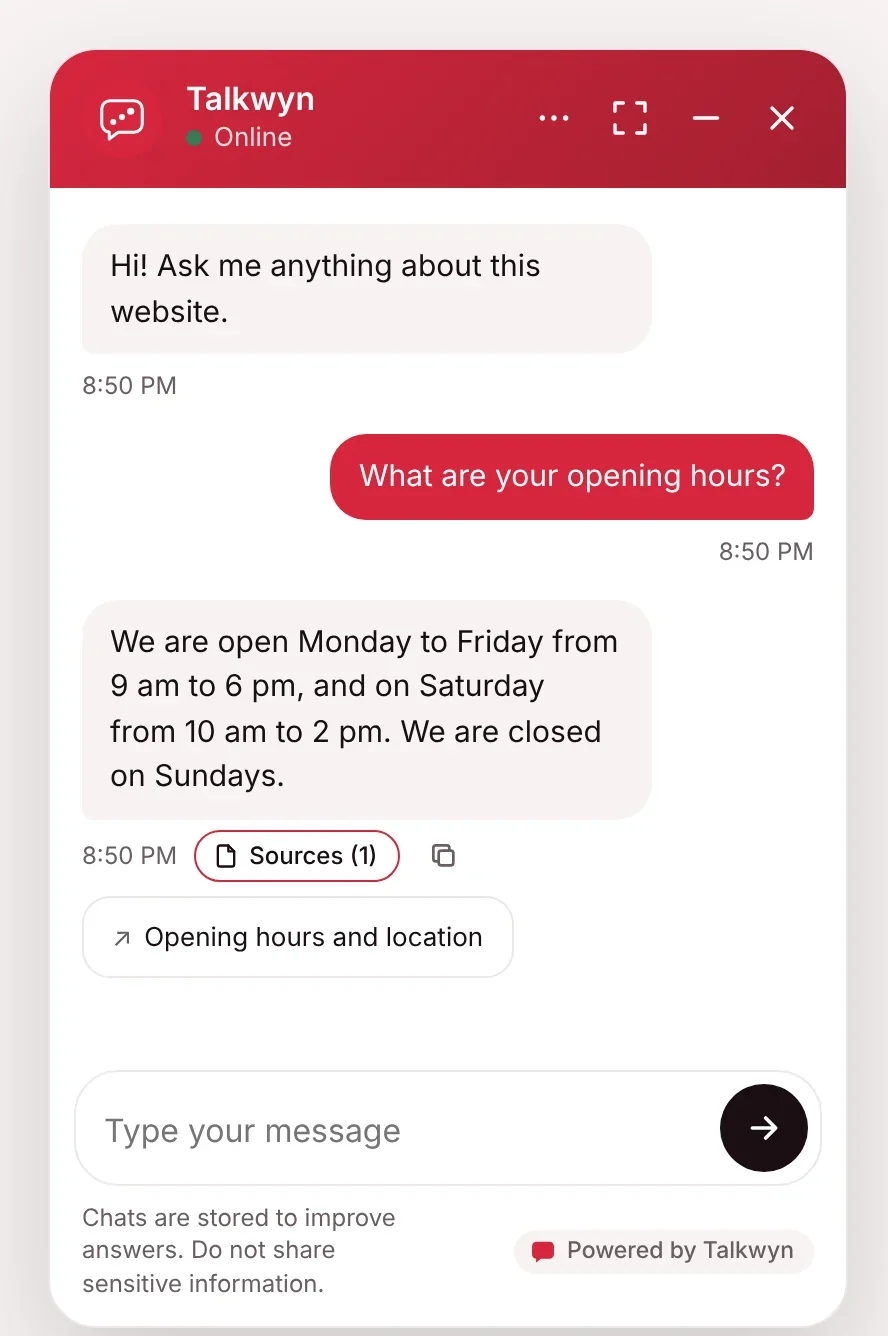
Ask each question and compare the reply with your expected answer. For every reply, check:
- Is it correct? Prices, hours, and policies must match your pages exactly.
- Is the source link right? Talkwyn shows source links under each answer. Click them and make sure they lead to the page you expect.
- Is it clear? Would a customer understand it without reading the whole page?
- Is it complete? Does it answer the question that was asked, not a nearby one?
When an answer is wrong, the fix is almost always on the page, not in the chatbot. Rewrite the page, save it, and ask again. Talkwyn keeps its index up to date when you edit, so changes show up without a new setup. Our guide on writing pages your chatbot can answer has tips for common problems.
Step 3: Test follow-ups and unknown questions
Follow-up questions
Real chats are rarely one question long. Ask about a product or service, then follow up with “and how much is that?” or “do you have it in another size?” A good chatbot understands what “that” refers to. Talkwyn handles follow-ups like these.
Questions your site cannot answer
This is the most important test. Ask things you know are not on your site: a product you do not sell, a service area you do not cover, a discount that does not exist. The chatbot should say it does not know and offer to have your team follow up. It should never invent a price or a policy. Talkwyn is built to do exactly that, but checking it on your own content gives you confidence.
Small talk and off-topic messages
Try “hi”, “thanks”, and “are you a robot?” Greetings and small talk should get a friendly reply. In Talkwyn they are handled without using your AI quota.
Step 4: Test every language you expect
If your visitors write in more than one language, test each one. Ask the same key questions in each language and check that:
- The reply comes back in the same language as the question.
- Prices, names, emails, and product names are unchanged.
- The chatbot switches when you switch language mid-chat.
- Right to left languages such as Arabic display correctly. See our Arabic chatbot checklist.
Language quality depends on the AI model you choose, so if a language matters a lot, ask a native speaker to review a few answers. The multilingual chatbot page lists the languages Talkwyn focuses on.
Step 5: Test lead capture end to end
Pretend to be a ready customer. Type things like “can I book?”, “what’s the price?”, or “call me”. Then check the whole path:
- The chatbot asks before showing the lead form.
- The form is short and easy to fill in on a phone.
- The lead appears in your WordPress dashboard.
- The email notification arrives in the right inbox, and not in spam.
- Someone on your team knows they are responsible for following up.
Also test the opposite: say no when the chatbot offers the form, and make sure it keeps helping without pushing. Read more on the lead generation features page.
Step 6: Check design, mobile, and privacy settings
- Mobile. Open your site on a phone. Check that the chat button does not cover important buttons and the chat window is easy to read and close.
- Where it shows. Decide whether to hide the chatbot on checkout, thank-you, or other pages.
- Welcome message. Make sure it says what the chatbot can help with, in plain words.
- Privacy notice and logs. Review the built-in privacy notice, and decide whether to keep chat logs, turn them off, or auto-delete them after a set number of days.
- AI providers. Add a second provider so Talkwyn can switch automatically if the first one hits its limit.
Our website chatbot privacy checklist covers the privacy side in more detail.
Launch, then keep testing
When your test sheet looks good, turn the chatbot on. For the first few weeks, read new chats regularly. Add any new question to your sheet, fix the page behind any weak answer, and test again. The chatbot gets better because your pages get better.
If you have not installed Talkwyn yet, the getting started guide walks you through setup on the WordPress chatbot plugin. Pro adds analytics and an inbox that make ongoing review easier. Compare plans on the pricing page.
Questions about how to test your chatbot
How long should I test my chatbot before launch?
An hour or two is enough for most small sites. What matters is a planned list of real questions, not the time spent.
How many questions should I test?
Start with the questions you get most, plus a few you know the site cannot answer. Add more as real visitors ask new ones.
What should I do when an answer is wrong?
Fix the page the answer came from, save it, and ask again. Talkwyn updates its index when you edit content.
Should I test in other languages if I only speak English?
Yes, if your visitors use them. Ask a native speaker to type a few questions and review the replies.
Can I test without visitors seeing the chatbot?
Yes. Set it up and test before you turn it on for everyone.
How do I try this on my own site?
Install the free plan, or start a 15-day Pro trial, and test it with the questions your customers really ask. Install Talkwyn.
Is there a free plan?
Yes. The free plan is free forever, not a time-limited demo. It includes the site scan, multilingual answers, lead capture, chat history and the free AI providers. See every plan.
How does the free trial work?
You get every Pro feature for 15 days on one site. No credit card needed. When the trial ends, upgrade with the same key or keep the free plan. Start the trial.
What happens when the answer is not on my site?
Talkwyn says it could not find that and offers to have your team follow up. It answers business questions only from your own content, so it never invents a price or a policy.
Where are chats and leads stored?
In your own website database. Messages go only to the AI provider you picked, and you can turn chat logs off or have them deleted after a number of days you choose. Read our privacy approach.